
So you’ve got a new website? Or possibly a not so new one?!
Updates are a key part of maintaining your sites health and security – let’s go over some of the basics.
Updating - the basics.
When you arrive at your website dashboard, you are going to have three main types of updates…
Core Software
This encompasses the WordPress system itself, and often your chosen builder, for example 'Elementor'
Plugins
This is often the area with the most updates, but can depend on what you have installed!
Themes
A collection rules that define appearance, you may have multiple installed, but only one active.
When is the right time?
As a rule of thumb, you should update your site as quickly as you reasonably can. Most updated will contain bug fixes and security updates – always good things!
This said, don’t just dive right in, as updating is not risk free.
When updates are minor releases, updates or bug fixes you should aim to update as soon as possible, but when the update is a major release, adding new features – you can usually wait a little time to update to ensure that it is safe for your website to do so.
Automatic Updates
For more recent versions of WordPress, by default, minor core updated will be applied automatically, this is usually shown with at least two decimal points on the version number (for example 5.2.3).
For larger updates however, WordPress will not usually apply anything on your behalf for core, theme or plugin versions.
It is possible to turn on automatic updates but this is at your own risk, as there is always the chance of compatibility issues!
Getting Ready to Update
Often you can update all areas of your site without issues, however, it can get complicated under the hood sometimes and things can go wrong!
As an example, updating core software could have a knock on effect with a plugin that hasn’t caught up with new features yet – it happens! Even if 9 times out of 10 everthing goes smoothly, do you really want to take the risk!?
For this reason, we would always advise backing up your site. For most of our builds at Blank Box, you will benefit from timeline backups as standard, but make sure you have a fallback should anything go wrong!
You can always perform a manual backup from the WordPress dashboard.
Alternatively Blank Box users can use their staging site to test updates on a temporary version of their site before going ahead with anything on the live build.
Core WordPress Updates
The easiest way to update your core software is from the dashboard, if there is an update available you will see an orange circle with the corresponding amount of updated available.
Make sure you have backed up or tested in your staging site first.

Once you are in, all you then need to do is click the ‘update now’ button.
During the update WordPress automatically puts your site into maintenance mode and puts it live again afterwards, although it doesn’t usually take long.
Theme and Plugin Updates
Almost all theme and plugin updates can be done via the dashboard, however for some that you have purchased you may need to activate with a license key in order to get the updates (for example with Elementor Pro whereas base elementor would not require authentication)
Make sure you have backed up or tested in your staging site first.
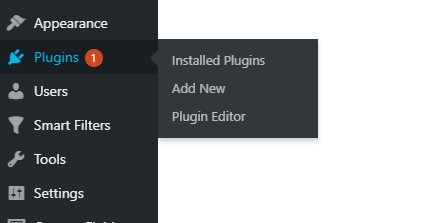
You will then see a list of all your installed plugins, those that have updates waiting with have a box where you can read about what the update includes as well as the ‘update now‘ button which you click to start the update.

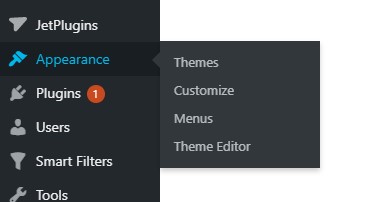
For your themes, it is a similar process, access your themes from the dashboard side panel, and click the ‘update now‘ button in the box next to any corresponding themes.
You only need to update any active themes. If you would rather not have to update themes you are not using, you can uninstall these from your control panel.
Summary
Always make sure your site is backed up before updating.
Test on your staging site where relevant / possible.
Smaller updates should be done quickly and often need less caution.
Larger updates can usually wait but may need more testing.
If you are ever unsure, contact your website provider or plugin builder.
Happy Updating!
